
How to Find Chipotle Nutrition Facts on the Official Chipotle App (2026 Guide)
Keeping an eye on calories and nutrients has become part of everyday eating for many people. If you order from Chipotle, you’ve probably wondered how to check nutrition facts before placing your order. If you want a faster way to estimate your meal, try a Chipotle calorie calculator before placing your order.
The good news is the Chipotle app does offer some nutrition details. The downside is that they’re not always shown in a simple, complete format. This guide explains exactly where to find that information and how to get a full calorie breakdown when the app falls short.
Why Nutrition Info at Chipotle App Matters
Chipotle app lets you build your own meal, which is great for customization but tricky for calorie tracking. The total nutrition depends entirely on what you add. For example, a simple bowl with vegetables and lean protein can stay relatively low in calories. Add extras like cheese, sour cream, or a tortilla, and the number rises quickly. To understand how each ingredient affects your meal, check the complete Chipotle nutrition facts guide.
Understanding nutrition facts helps you:
- Control calorie intake
- Balance protein, carbs, and fat
- Avoid overeating high-calorie toppings
- Stick to fitness or diet goals
Without checking, it’s easy to underestimate how much you’re actually eating. You can also explore a detailed Chipotle calories breakdown to see how different meals compare.
Does the Chipotle App Show Nutrition Facts?
Yes, but only partially.
The app focuses more on building your meal than displaying a full nutrition label. Instead of showing a complete breakdown for your order, it provides basic details for individual ingredients.
So while you can gather useful information, you may not see total calories or full macros in one place.
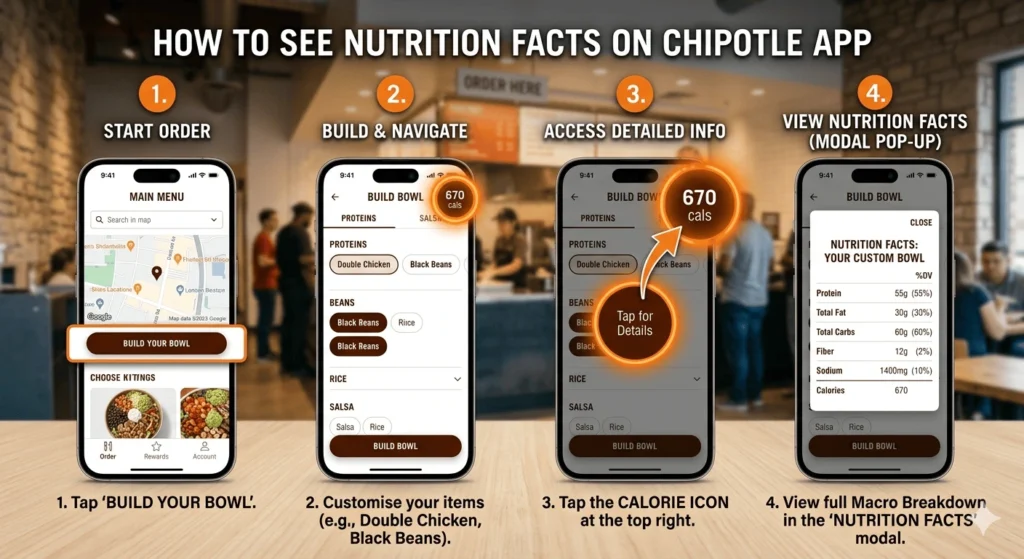
Step-by-Step: Finding Nutrition Info in the Chipotle App
Here’s how to access what’s available:
1. Open the App and Start an Order
Launch the Chipotle app and begin creating a new order. Nutrition details appear during the customization process, not before.
2. Select Your Meal Base
Choose from options like:
- Burrito
- Bowl
- Salad
- Tacos
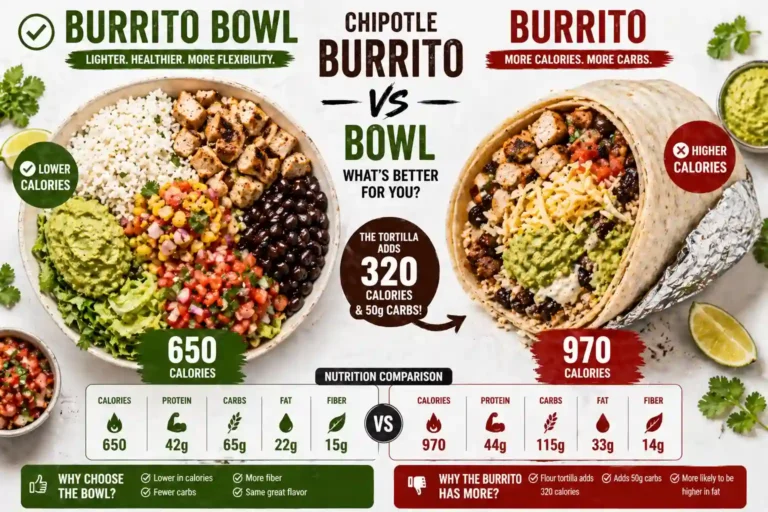
Each base has a different calorie range. For instance, a tortilla adds a significant number of calories compared to a bowl or salad.
3. Add Ingredients One by One
As you build your meal, you’ll pick rice, beans, protein, and toppings.
Some items include small info icons or clickable sections that reveal basic nutrition details like calories or serving size. Each ingredient adds its own calories, which is why using a Chipotle nutrition calculator gives a more accurate total.
4. Tap for Ingredient Details
If available, tap on an ingredient to view more information. This usually includes:
- Calories per serving
- Portion size
- Limited nutrition data
Not every item provides the same level of detail, so you may need to estimate.
5. Review Your Order Summary
Before checkout, look at your order overview.
At this stage:
- Full calorie totals may not be clearly displayed
- Macro breakdowns are usually missing
This is where many users realize the app isn’t designed for complete nutrition tracking.
A Better Way: Use a Chipotle Nutrition Calculator
If you want precise numbers, using an external nutrition calculator is the easiest option. Since the app doesn’t always show full totals, many users rely on a Chipotle calorie calculator to track their exact intake.
These tools are designed specifically for Chipotle meals. You select the same ingredients you chose in the app, and the calculator totals everything instantly.
With a calculator, you can see:
- Total calories
- Protein content
- Carbohydrates
- Fat
- Sodium
It’s a much clearer way to understand what your meal contains.
Tips for More Accurate Calorie Tracking
Even with tools and apps, a few habits make your tracking more reliable.
Pay Attention to Portions
Serving sizes in real life don’t always match standard values. A little extra rice or protein can add more calories than expected.
Be Careful with “Extra” Add-Ons
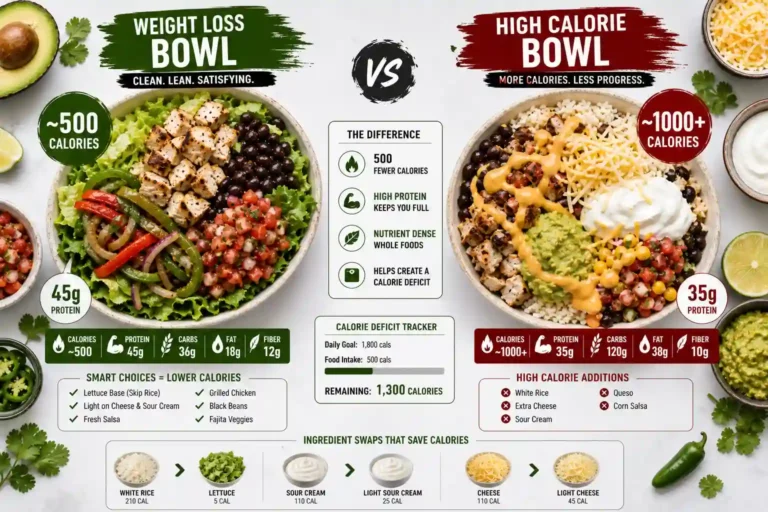
Doubling ingredients like cheese or sauces can significantly increase fat and calorie intake.
Choose a Lighter Base
Switching from a burrito to a bowl or salad can reduce calories without sacrificing flavor.
Focus on Lean Proteins
Options like chicken or plant-based protein often provide a better balance of nutrients compared to higher-fat choices.
Limit High-Calorie Toppings
Ingredients such as sour cream, cheese, and dressings can quickly push your meal into a high-calorie range.
Typical Calorie Ranges at Chipotle
While every meal is different, here’s a general idea:
- Burrito: high calorie range due to tortilla and fillings
- Bowl: moderate, depending on toppings
- Salad: usually lighter, especially without dressing
- Tacos: varies based on shell type and fillings
The final number depends entirely on your customization choices.
Key Takeaway
The Chipotle app gives you some nutrition insight, but it doesn’t provide a full picture. You can check basic details for individual ingredients while building your meal, but total calories and macros aren’t always shown clearly.
For a complete understanding, pairing the app with a nutrition calculator is the most effective approach. It gives you control and helps you make better food choices without guessing.
I was wondering if you ever thought of changing the layout of your blog? Its very well written; I love what youve got to say. But maybe you could a little more in the way of content so people could connect with it better. Youve got an awful lot of text for only having one or two images. Maybe you could space it out better?
I’ve been playing here for a few weeks now and the payouts are surprisingly fast. Definitely one of the most reliable platforms I’ve found recently. Check out ph77pinas for a great experience.
The customer support is actually helpful which is rare these days. I had a small issue with my deposit and they sorted it in minutes. Give au8802com a go.
Best selection of slots I have seen in a while. The graphics are amazing and I won a nice amount last night on ph24jilipark.
The customer service here is top notch. I had a small issue with my account and they fixed it in minutes. Great job by idpiala88 for keeping players happy.
Such a vibe! The games load instantly and I love the variety of options available. braa888 is hands down one of the best platforms I have used recently.
If you are looking for a secure way to play your favorite games then this is it. Everything feels safe and the support team is very helpful. Give jilibet178login a try.
Solid platform with a very trustworthy feel. The sign up process was a breeze and I started playing within minutes. Big thanks to pamanempirelogin
Really impressed with the stability of the site. I haven’t encountered any glitches even during peak hours. Great job by the team at phpw777.
Really impressed with the service here. The rewards are generous and the community vibe is great. If you are looking for a top notch spot, check out istanaimpian1.
Everything from the registration to the actual play was spot on. Very professional setup and fair play. Love using jljl1login.
I love how I can bet anytime and anywhere. The 24/7 availability is perfect for my schedule and the odds are quite competitive. kr247bet
The registration was a breeze and I started playing almost immediately. It is refreshing to find a site that values the users time. idsinar777
I’ve been trying out a few sites lately and this one really stands out. The interface is smooth and the payouts are surprisingly fast. Definitely my new favorite spot to hang out. Check it out at phokadaplay